
Custom Domains
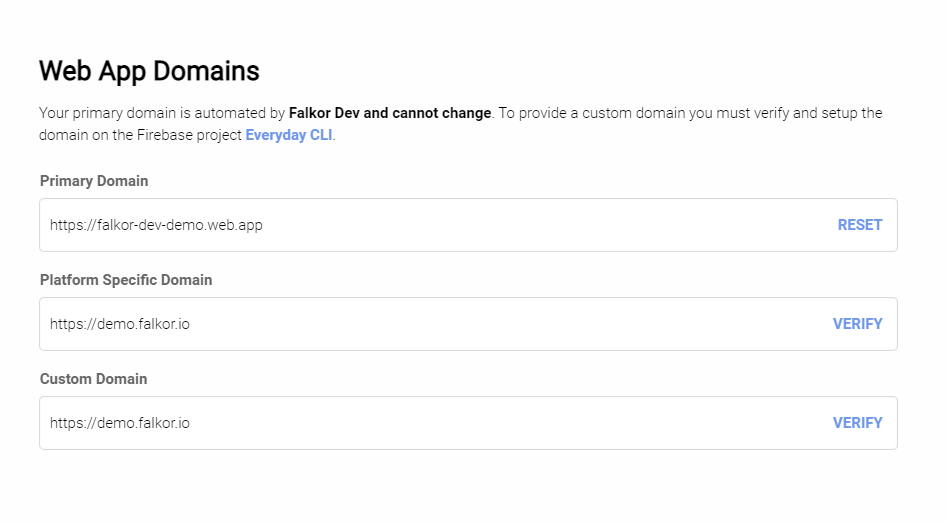
With web app domains we provide the following domain types:
Primary Domain: This is automatically provided by Firebase and takes the form of platform-appname.web.app (e.g. bytekast-demo.web.app)
Platform Specific Domain: This is the platform-specific domain we use for all apps and takes the form of appname.platformdomain.io (e.g. demo.bytekast.io)
Custom Domain: Is only used if requested and meets Firebase requirements. https://firebase.google.com/docs/hosting/custom-domain
If the customer's domain requires a restriction on certificate authorities with CAA records, ensure that the certificate authorities letsencrypt.org and pki.goog is allowed to create SSL certificates for the domain.
If the customer's domain is unable to work with Firebase hosting we recommend using the platform domain or purchasing a new domain.
Data-free domains are not supported on a single web-app and would require a syndication with a data-free domain.
All web apps are hosted on Google Firebase hosting. By default when your web app is deployed it will automatically create a domain on the web.app domain. Currently, Firebase API endpoints do not provide a way to automate custom domains and this step will need to be done manually.
With custom domains, you have two types you can setup.
Custom Domain Types
Platform Specific (Semi-Automatic)
When you deploy a web app for the first time and you have a GoDaddy domain for your platform, a platform-specific domain will be setup for the app for example:
https://appname.bytekast.io https://appname.falkor.io https://appname.airshot.io To enable this domain you will need to add the platform-specific domain on Firebase hosting after deploying the web app for the first time. To do this follow the steps below:
Navigate to Network Settings
Under Web App Domains, select the link to the app's Firebase project.
In Firebase, navigate to Hosting and look for your web app and select view
Click Add custom domain.
Type/paste in your platform-specific domain into the domain field and click Continue
You will not need to verify or add DNS settings and should just click Finish
Back on network settings select Verify on the platform-specific domain
Once the platform-specific domain verifies select Apply New Primary domain
Custom Domain (Manual)
To use a custom domain you will need to verify the domain on Firebase by updating DNS records of the domain:
Navigate to Network Settings
Under Web App Domains, select the link to the app's Firebase project.
In Firebase, navigate to Hosting and look for your web app and select view
Click Add custom domain.
Type in your custom domain into the domain field and click Continue
You will be instructed to add a TXT record to your domain DNS
Once your TXT record is added and updated click Verify
Next, you will be asked to add A records to your domain's DNS
Once your A records are added click Finish
Back on Network Settings select Verify on the custom domain
Once the custom domain verifies select Apply New Primary domain
Remember DNS records can take a few hours to update
Last updated